


Table of Contents
ToggleOverwatch 2 is a free-to-play juggernaut that pulled millions of players back into Blizzard’s hero shooter when it launched in 2022. But here’s the thing, just because it’s free doesn’t mean your rig can run it without breaking a sweat. Whether you’re eyeing competitive play or just want to experience the chaos of 5v5 team battles, knowing your system’s limits is crucial. This guide breaks down exactly what your PC, console, or mobile device needs to handle Overwatch 2 smoothly, from potato-tier minimums to high-end esports setups that’ll push 240+ FPS. We’ll also cover how to verify your system compatibility and fix common performance gremlins that plague countless players.
Key Takeaways
- Overwatch 2 minimum specs are outdated; plan for 16GB RAM and a mid-range GPU from the last 3-4 years for smooth gameplay without constant tinkering.
- For competitive play, target 1440p at 144+ FPS on high settings, which requires pairing an RTX 4070 or similar GPU with a modern i7/Ryzen 7 processor.
- A 1440p 240Hz monitor offers the best balance for competitive Overwatch players, while 1080p at 60 FPS remains perfect for casual play on high settings.
- Console players should choose PS5 or Xbox Series X for 1440p 120 FPS performance mode; Xbox Series S is a budget-friendly entry point, while Switch is limited to 30 FPS and best for casual couch play.
- Frame rate stability matters more than maximum graphics settings—a steady 100+ FPS at medium settings outperforms stuttering at ultra, and driver updates plus background app closure solve most performance issues.
- Test your system compatibility by launching Overwatch 2 through Battle.net, which includes built-in hardware warnings, and verify game files via Scan and Repair to eliminate mysterious stuttering.
Minimum System Requirements for PC
Processor and RAM Specifications
Let’s be real, Overwatch 2’s minimum CPU requirement is forgiving, but that doesn’t mean your 2010 laptop will cut it. Blizzard officially requires an Intel Core 2 Duo E8400 or AMD equivalent (seriously old hardware), but in practice, you’ll want something from the last 8-10 years to avoid constant stuttering.
Minimum RAM sits at 4GB, but don’t run with that. You’ll have other apps in the background, Discord, Chrome, whatever, and 4GB will choke faster than a Zenyatta ulting into a wall. Plan for at least 8GB if you’re running stock Windows 10/11. If you want smooth gameplay without closing everything else, 16GB is the sweet spot for most gaming rigs today.
Graphics Card and Display Requirements
Graphics card-wise, Blizzard lists the GeForce GTX 650 or Radeon HD 7850 as the minimum. These cards are ancient in gaming years, but they’ll technically run Overwatch 2 on low settings at 30-60 FPS. Reality check: if you’re rocking one of these, you’re looking at 1080p low preset with settings scaled back hard. The game will be playable, but it won’t be pretty.
Display requirements are straightforward, a standard 1080p monitor at 60Hz is the bare minimum. You don’t need a fancy gaming monitor: any old 16:9 panel at 60Hz will do. Resolution shouldn’t drop below 1080p unless you’re running ancient hardware: Overwatch 2 scales better than most modern shooters.
Storage and Internet Connection
The game takes up roughly 35-40GB of space on SSD or HDD (SSD is faster for loading, but HDD works fine). Make sure you have breathing room, not literally the exact amount, but at least 50GB free to avoid Windows performance tanking from a full drive.
Internet-wise, Blizzard recommends 5 Mbps down, 1 Mbps up minimum. In 2026, if you’re still on dial-up, I can’t help you, but broadband connections are standard everywhere. For competitive play, you want lower ping (60ms or less ideally), but the bandwidth itself isn’t the bottleneck for most players. A 10 Mbps connection is perfectly adequate: the real issue is packet loss and latency spikes.
Recommended System Requirements for Optimal Performance
High-Performance CPU and GPU Combinations
Here’s where things get interesting. Blizzard’s “recommended” specs call for an Intel Core i5-6600K or AMD Ryzen 5 1600. These are from 2015-2017, which is honestly why the recommendation table feels outdated. For 2026, treat “recommended” as “bare minimum for 1080p high settings.” If you want 1440p or 144+ FPS, you need newer hardware.
A modern mid-range setup looks more like an Intel Core i7-12700K or AMD Ryzen 5 5600X paired with an RTX 3070 or RX 6700 XT. These will comfortably hit 1440p at 100+ FPS on high settings. If you’re shopping for a fresh build, don’t cheap out on the GPU, Overwatch 2 rewards higher framerates and refresh rates more than graphical fidelity. The difference between 60 FPS and 144 FPS is massive for tracking and flick shots.
Memory, Resolution, and Refresh Rate Targets
Recommended RAM is 8GB, but again, plan for 16GB as standard in 2026. It’s cheap, it eliminates stuttering from background apps, and it keeps your system responsive when you alt-tab between Overwatch and your browser.
Resolution targets depend on your monitor and GPU. 1080p at 144Hz is the golden middle ground for competitive players, it’s sharp enough and fast enough. If you’ve got a 1440p display, aim for 100-110 FPS minimum on high settings: dips below 100 FPS feel choppy in fast-paced shooters. Refresh rate matters more than visual quality here. A 240Hz monitor at 1080p medium settings will feel buttery compared to a 60Hz monitor at ultra.
For casual play, 1080p at 60 FPS on high settings is perfectly fine and looks great. Your experience depends on your monitor, not just your GPU. Someone with a high-end card on a 60Hz panel won’t feel any different than a mid-range card, the monitor is the bottleneck.
Console Requirements: PlayStation, Xbox, and Nintendo Switch
PlayStation System Specifications
PlayStation 4 still runs Overwatch 2, but expect 1080p at 60 FPS with occasional dips. The PS4 is aging, and while it handles the game, you won’t get the smoothness competitive players crave. PlayStation 5 is the real deal, native 1440p at 120 FPS in performance mode, or 4K at 60 FPS in fidelity mode. Most competitive PS5 players use performance mode because those extra frames matter for reaction time.
You don’t need a special edition PS5: any standard PS5 runs Overwatch 2 identically. You’ll want a solid internet connection for ranked play (50+ Mbps down is fine), but the console hardware itself isn’t a constraint anymore. Do You Need PS breaks down the subscription requirements if that’s a concern.
Xbox Platform Requirements
Xbox One handles Overwatch 2 similarly to PS4, 1080p at 60 FPS is the norm, with occasional stuttering during hectic teamfights. Xbox Series X is where it shines: 1440p at 120 FPS performance mode, or 4K at 60 FPS quality mode. Series S (the budget Xbox) runs 1080p at 120 FPS, which is genuinely impressive for the price. If you’re buying an Xbox specifically for Overwatch 2, Series S is a solid entry point: Series X is overkill unless you care about 4K.
Xbox Game Pass includes Overwatch 2 on PC, but console versions require Game Pass Ultimate or a free account. Storage-wise, Overwatch 2 takes about 35-40GB on both current-gen Xbox and PS5.
Nintendo Switch Considerations
Switch is the outlier here. Overwatch 2 runs at 1080p docked or 720p handheld, but frame pacing is locked at 30 FPS. Thirty frames per second in a competitive shooter feels sluggish compared to console or PC, and aiming suffers. That said, the Switch version exists and runs surprisingly stable, it’s great for casual play on the couch, not competitive ranked. The game relies on cloud save compatibility across platforms, so your account and cosmetics sync everywhere via Overwatch Cross Platform Play:.
Switch doesn’t require an external drive, but you’ll need 20GB of internal storage or a microSD card. The online infrastructure varies by region, but Nintendo Switch Online is required ($20/year basic, $50/year premium).
Ultra and Competitive Gaming Requirements
High-End GPU and CPU Pairing for 144+ FPS
Want to hit 240+ FPS on high settings at 1440p? Welcome to the esports player club. You’re looking at an RTX 4080 or RTX 4090 paired with an Intel Core i9-13900K or AMD Ryzen 9 7950X. These rigs cost $3,000+ and honestly, that’s overkill for Overwatch 2 compared to other modern shooters.
A more realistic high-performance target: RTX 4070 or RTX 4070 Super with a Core i7-13700K or Ryzen 7 7700X. This setup will consistently hit 200+ FPS at 1440p on high-to-ultra settings. Frame time matters more than raw FPS at this level, you want frame times under 5ms (that’s 200+ FPS) to eliminate micro-stutters.
GPU memory should be 12GB minimum at this tier: 16GB is safer for future games. CPU choice matters less, both Intel and AMD are competitive, but faster RAM (5000MHz+) and a good power supply (850W+) are non-negotiable. Recent benchmarks from TechSpot show even budget-conscious RTX 4060 cards can hit 150+ FPS at 1440p medium settings, so the sweet spot for 144+ FPS isn’t as punishing as it used to be.
Monitor Specifications and Peripheral Recommendations
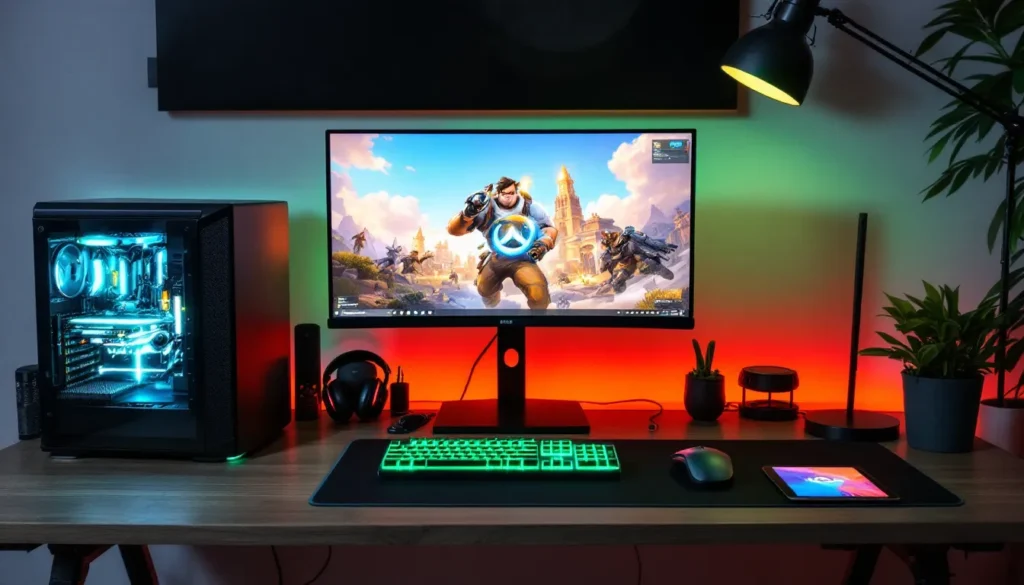
A 1440p 240Hz monitor is the competitive player’s standard. IPS or VA panels both work: TN panels (cheaper) have faster response times but worse colors. Response time should be under 5ms (gray-to-gray). Examples: ASUS ProArt, Dell S2721DGF, or LG 27GP850. Expect $250-400 for quality 1440p 240Hz displays.
Ultra-competitive players sometimes opt for 1080p 360Hz monitors instead, higher refresh rates reduce input lag and motion blur further. It’s a trade-off between sharpness and raw responsiveness. At this level, it’s personal preference.
Peripherals matter: a low-latency gaming mouse (Razer DeathAdder, Logitech G Pro X, SteelSeries Prime), a mechanical keyboard, and a fast mousepad are standard. Latency on keyboard/mouse is negligible (sub-millisecond), but consistency and comfort over long sessions matter. A $40 keyboard and $60 mouse will serve you fine: brand names aren’t mandatory.
Headphones or earbuds with low latency are crucial, positional audio is how you track enemy footsteps. Wireless is fine now (2.4GHz dongle latency is near-zero), but wired eliminates any doubt. Audio quality isn’t the focus: clarity of in-game sound effects is.
How to Check Your System Compatibility
Windows and Mac Tools for Verification
On Windows, the easiest check is to open Settings > System > About and note your processor, RAM, and Windows version. For GPU info, right-click the desktop and select “NVIDIA Control Panel” or “AMD Radeon Settings” depending on your card. Device Manager (right-click Start > Device Manager) lists your graphics hardware if you’re unsure.
CPU info via CPU-Z (free download) or just opening Task Manager (Ctrl+Shift+Esc) and looking at the Performance tab. You’ll see processor name, core count, and RAM info. Overwatch 2 has a built-in system scan too, launch the game, and if your hardware falls below minimums, it’ll warn you before the game even starts loading.
For Mac, you can’t run Overwatch 2 natively anymore. Blizzard dropped macOS support, so Mac players are out of luck unless they boot Windows via Bootcamp (for Intel Macs) or use cloud streaming solutions. Performance-wise, Mac hardware isn’t optimized for modern gaming anyway.
Linux users are also out: Overwatch 2 doesn’t officially support Linux. Some players have reported success with Proton compatibility layers, but it’s unsupported and potentially against Blizzard’s terms of service.
The most reliable check is running the actual game. Download Overwatch 2 from Battle.net, launch it, and let it run. If you’re below specs, the client will warn you. Load a practice game against AI to test framerates, this is free and shows real-world performance without risking ranked.
Troubleshooting Common Performance Issues
Frame Rate Drops and Stuttering Solutions
Frame rate tanking mid-game? First, check your background apps. Discord streaming, Chrome tabs, Spotify, all chew CPU cycles. Close unnecessary programs and see if FPS stabilizes. Task Manager (Ctrl+Shift+Esc) shows what’s hogging resources in real-time.
In-game, lower your graphics preset one step (high to medium, medium to low). Frame rate impacts gameplay more than visuals, so don’t hesitate to dial back settings. Disable motion blur, reduce shadow quality, and cap framerate to your monitor’s refresh rate (if you’re hitting 165 FPS on a 144Hz monitor, you’re wasting power and generating heat).
Overheating causes throttling and FPS drops. Check your GPU/CPU temps with GPU-Z or HWinfo64 (free tools). GPUs above 80°C and CPUs above 90°C are pushing it. Clean your case fans, ensure adequate airflow, and maybe reapply thermal paste on your CPU if it’s older.
Stuttering (periodic freezes even with decent FPS) often points to storage issues. If your OS drive is full, Windows falls apart. Keep at least 10% of your drive free. SSDs are faster, but mechanical drives work fine for gameplay, the stuttering usually comes from OS bloat, not storage speed.
VRAM (graphics memory) running out causes stuttering. RTX 3070 has 8GB VRAM: if you’re hitting that limit at 1440p ultra, lower texture resolution or reduce resolution. Overwatch 2 doesn’t demand much VRAM compared to other titles, but monitor usage with GPU-Z to confirm.
Driver Updates and Software Optimization
Outdated drivers are a common culprit. NVIDIA drivers and AMD Adrenalin should be updated monthly. Go to nvidia.com or amd.com, download the latest driver, and install. A recent driver fix might give you 10-15 FPS improvement on Overwatch 2.
Tom’s Hardware frequently benchmarks driver performance, and you’ll often see notes about game-specific optimizations. Blizzard sometimes releases patches that play better with certain driver versions, so check the Overwatch 2 patch notes if you’re stuttering after an update.
Windows updates and background services can tank FPS. Disable Windows Game Bar (Settings > Gaming > Game Bar), turn off Game DVR, and check if Xbox App is running in the background. These are usually harmless but occasionally cause latency issues.
For optimization, use Windows PowerPlan settings, set to High Performance instead of Balanced. This prevents your CPU from downclocking during gameplay. It uses more power but removes throttling.
Finally, if you’re using Discord in-browser or Discord overlay in-game, disable it while playing. The overlay adds latency: Discord’s native app is lighter. DSOGaming has detailed guides on disabling unnecessary services for gaming, if you’re willing to dig deeper into Windows optimization.
One more thing: verify game files in Battle.net. Corrupted downloads or failed updates cause weird stuttering. Launch Battle.net, go to Overwatch 2, click Options > Scan and Repair. This takes 10 minutes but often fixes mysterious issues.
Conclusion
Overwatch 2’s system requirements span a wide range, from budget potato builds to enthusiast rigs pushing 240+ FPS. The key takeaway: Blizzard’s minimum specs are real but outdated, and “recommended” specs are actually closer to low-end. For a seamless process in 2026, plan for 16GB RAM, a mid-range GPU from the last 3-4 years, and an SSD. Competitive players invest in 1440p 144Hz+ monitors and high-end components, but it’s not required, plenty of players rank up comfortably on modest rigs.
Console players have it easier: PS5 and Xbox Series X run Overwatch 2 at excellent framerates with zero tinkering. Switch is viable for casual play but rough for ranked due to 30 FPS constraints. The community continues to discuss balance and meta shifts on Overwatch Ages: What You Need to Know About This Vibrant Gaming Community – Riftwhiz, and system optimization tips are regularly shared across gaming forums.
Don’t get stuck on hitting maximum settings. A stable 100+ FPS at medium settings beats stuttering at ultra. Check your system now, troubleshoot any issues, and jump in, the game’s free, and there’s no better way to learn what your rig can handle than actually playing.